
Table of Contents
You do not need design skills, expensive software, or a stock photo subscription to make a great image anymore. If you can describe a picture in plain words, you can make it. In this guide, you will learn how to create AI images with ChatGPT step by step, from your very first prompt to polished images you can use for social media, blog posts, and small business projects.
ChatGPT turns a short text description into a finished image right inside a normal chat. You type what you want, it draws it, and you can ask for changes in plain English until it looks right. No downloads, no learning curve, and no blank canvas staring back at you.
Why ChatGPT Is a Great Place to Start Making AI Images
Most image tools ask you to learn settings, sliders, and strange jargon before you make anything. ChatGPT does not. It is built for conversation, so learning how to create AI images with ChatGPT feels like asking a talented friend to draw something for you.
There are three reasons beginners love it. First, it understands plain language. You can write “a cozy coffee shop in the rain, warm light, watercolor style” and get a usable image. Second, it remembers the conversation, so you can refine an image with follow-up messages like “make the sky brighter” instead of starting over. Third, it can edit your own photos: upload a picture and ask ChatGPT to change the background, restyle it, or remove an object.
That combination makes it the easiest first image tool for bloggers, small business owners, teachers, and social media creators who need good visuals fast. That is why so many beginners start by learning how to create AI images with ChatGPT before trying more complex tools.
What You Need Before You Start
Before you learn how to create AI images with ChatGPT, gather these three things so your first session goes smoothly:
- A free ChatGPT account. Go to ChatGPT, sign up with an email, and start a new chat. Image generation is built into the chat, so there is nothing extra to install.
- A clear idea of the image you want. Think about the subject, the setting, the mood, and where the image will be used. A social media post, a blog header, and a product photo all need different shapes and styles.
- A few example prompts. Keep a short list of prompt ideas handy. If you need inspiration, our collection of AI image prompts for Instagram is a good place to start.
That is all. You do not need a graphics tablet, a paid plan, or any design experience to begin.
How to Create AI Images with ChatGPT: 7 Easy Steps
Follow these seven steps in order, and you will have your first finished image in a few minutes.
Step 1: Open ChatGPT and Start a New Chat
Open ChatGPT on the web or in the official mobile app and start a fresh conversation. A new chat keeps things clean, because ChatGPT uses the conversation history to understand your follow-up requests. If you are refining an older image, open that chat instead so the context stays intact.
Step 2: Describe the Image in Plain Words
Type your description as if you were telling a friend what to draw. This is the heart of learning how to create AI images with ChatGPT, and the quality of your words decides the quality of the result.
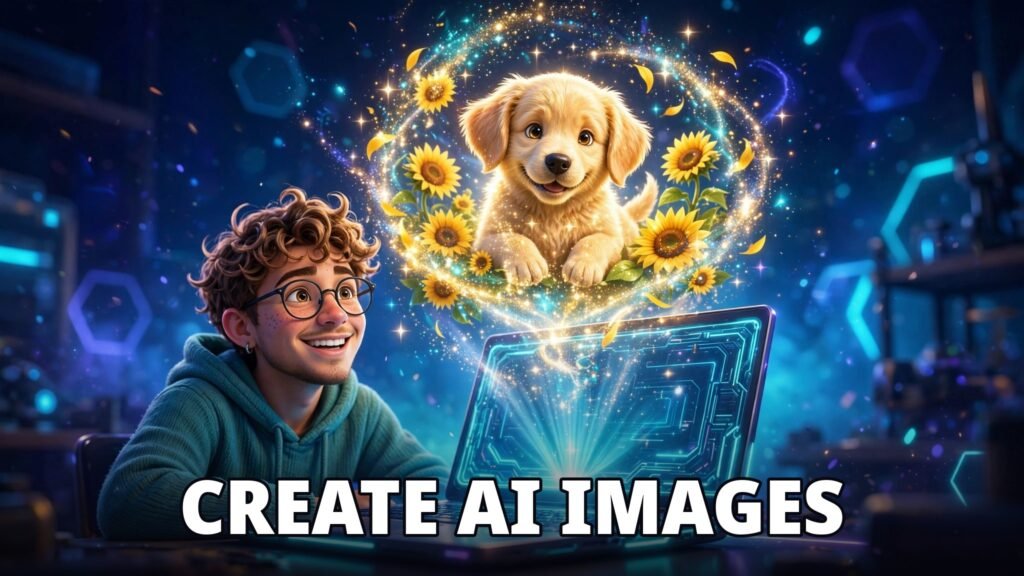
Good prompt: “A cheerful golden retriever puppy sitting in a sunny garden, surrounded by sunflowers, soft morning light, photorealistic style.” Weak prompt: “dog.” The first prompt gives the AI a subject, an action, a setting, a mood, and a style. The second gives it almost nothing.
Use this simple formula every time: subject + action + setting + lighting + style. Add colors and small details only when they matter.
Step 3: Ask for the Right Size and Shape
Tell ChatGPT the shape you need, because the same image works differently on different platforms. Add a line like “make it wide, 16:9, for a blog header” or “make it square for Instagram” or “make it tall, vertical, for a phone wallpaper.”
ChatGPT can produce square, wide, and tall images, so decide the shape before you generate. Cropping a finished image later almost always cuts off something important.
Step 4: Generate and Review Your First Version
Press send and wait. ChatGPT will usually create the image in under a minute. Look at it closely before you ask for changes. Check the subject, the background, the colors, and any text in the image, because AI tools sometimes misspell words inside pictures.
Your first version will rarely be perfect, and that is normal. The goal of this step is a strong base image, not a final masterpiece.
Step 5: Refine It with Follow-Up Prompts
This is where ChatGPT beats most image tools. You can keep talking to it in the same chat: “Make the colors warmer,” “Change the background to a beach,” or “Add a red scarf to the dog.” Each request edits the image you already have instead of starting from scratch.
Change one thing at a time. If you ask for five changes at once and the result looks worse, you will not know which change caused the problem.
Step 6: Edit Your Own Photos Too
Learning how to create AI images with ChatGPT also means learning to edit. Upload one of your own photos to the chat and describe the change you want: “Remove the person in the background,” “Turn this photo into a watercolor painting,” or “Change the sky to a sunset.”
This is a fast way to rescue a good photo with a bad background, or to turn a plain product photo into a polished listing image. Try it on a copy of your photo first if the original matters to you.
Step 7: Download and Use Your Image
When you are happy with the result, click the image and download it. Give the file a clear name, like “golden-retriever-sunflowers.jpg,” so you can find it later. Then use it in your blog post, social media caption, presentation, or online store.
One honest note: images made with ChatGPT are fine for most personal and business uses, but always check the terms for commercial projects, and never use generated images to mislead people about real events or real people.
5 Prompt Formulas That Work Every Time
If you ever stare at the chat box not knowing what to type, use one of these formulas. They are a shortcut for anyone learning how to create AI images with ChatGPT, built from the same ideas behind the prompts in our AI image prompts for book covers, and they work for almost any subject.
- Product shot: “Product photo of [product] on a clean white background, soft studio lighting, professional e-commerce style.”
- Social media art: “Vibrant illustration of [subject], bold colors, modern flat design, eye-catching, square format.”
- Realistic scene: “Photorealistic [subject] in [place], golden hour light, shot on a 50mm lens, shallow depth of field.”
- Storybook style: “Gentle watercolor illustration of [subject], soft pastel colors, children’s book style, warm and cozy.”
- Bold poster: “Dramatic poster of [subject], dark background, glowing neon accents, cinematic lighting, ultra-detailed.”
Replace the brackets with your own subject and place, keep the style words, and you will get consistent, usable results. If you want to go deeper, our guide on how to write better Midjourney prompts teaches the same skill in more detail, and most of it applies to ChatGPT too.
Common Mistakes to Avoid
Most disappointing results come from a few easy mistakes. Avoid these, and your images will improve immediately. The fastest way to get better at how to create AI images with ChatGPT is to fix these habits first.
- Prompts that are too short. “A cat” gives the AI too many choices. Add a setting, a mood, and a style.
- Too much text in the image. AI image tools still struggle with words inside pictures. Keep any text short, and check the spelling carefully.
- Changing everything at once. One edit per message keeps your results predictable and easy to undo.
- Forgetting the shape. Ask for the size you need before generating, not after.
- Expecting a perfect first try. Even experienced creators refine an image two or three times. Iteration is part of the process.
Free vs Plus: What Changes for Image Creation
Once you know how to create AI images with ChatGPT on the free plan, deciding whether to upgrade becomes simple. It comes down to how many images you make each week.
OpenAI does not publish a fixed daily number for free accounts, and the exact allowance can change, so treat the free plan as a generous trial rather than a production tool. When you reach the limit, ChatGPT shows you a message with the time until it resets.
ChatGPT Plus costs $20 per month and gives you much higher limits, faster generation, and priority access when the service is busy. If you make images every day for a business, a blog, or a social media account, Plus usually pays for itself in saved time. If you only need a few images a week, stay on the free plan and plan your generations carefully.
Frequently Asked Questions
Can I create AI images with ChatGPT for free?
Yes. Free accounts can generate images in ChatGPT, but with a small daily limit. When you reach it, ChatGPT tells you when the limit resets. Paid plans give you much higher limits.
How do I write a good prompt for ChatGPT images?
Describe the subject, the action, the setting, the lighting, and the style in one or two sentences. The more specific you are about what you want, the better the result. Start with the formula: subject + action + setting + lighting + style.
Can ChatGPT edit my own photos?
Yes. Upload a photo to the chat and describe the change in plain words, such as removing a background object or changing the style to watercolor. ChatGPT edits the uploaded image and returns a new version.
Can I use ChatGPT images for my business?
Yes, in most cases, but check the current usage terms for commercial projects first. Also avoid using generated images to misrepresent real people or real events.
Start Creating Today
That is all it takes to learn how to create AI images with ChatGPT. Open a new chat, describe the image you want, refine it with follow-up messages, and download the result. Your first image will take about five minutes, and your tenth will take even less.
Start with one simple image today, a social media post, a blog header, or a fun picture for a friend. Then try a new style tomorrow. Small daily practice is how you build real skill with any AI tool, and ChatGPT makes that practice easy.
Pingback: How to Create AI Coloring Pages for Kids: 7 Easy Steps
Pingback: 15 Stunning AI Image Prompts for Winter Landscapes
Pingback: How to Create AI Cartoons That Wow: 7 Easy Steps